
Jamf to Intune macOS Migration Instructions
This process typically takes 5-10 minutes. There is no expectation of data loss, but you should save all your work and close all open apps.
Step 1: Kick off the migration from Jamf’s Self Service App
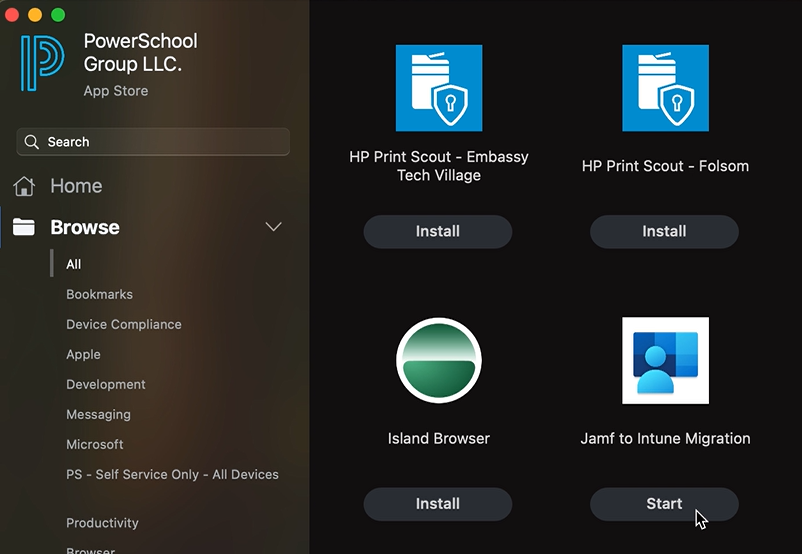
Open the Self Service app
Look for “Jamf to Intune Migration”
Click Start
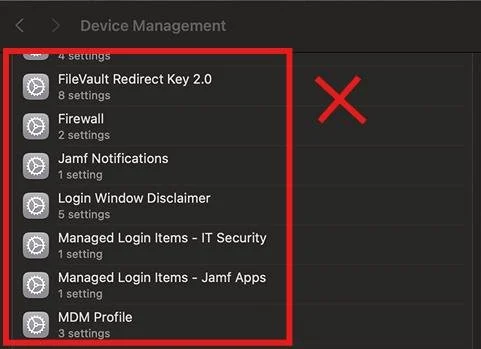
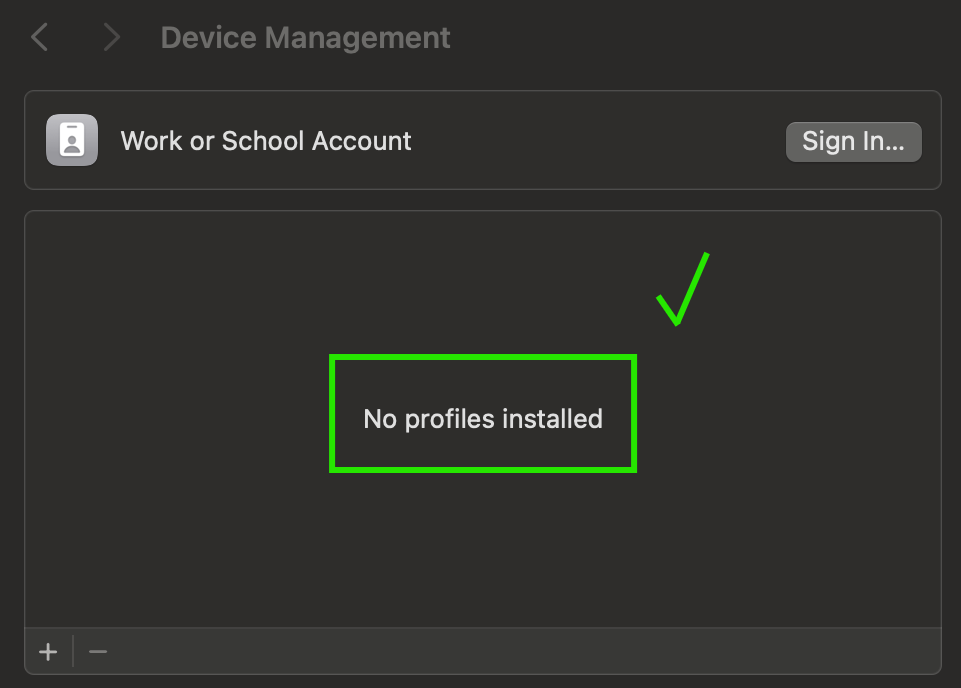
Step 2: A pop-up appears to ask you to open System Settings and then click Begin. On the next 2 pop-ups, you are asked to make sure all items are removed. DO NOT click Continue until the Device Management window is clear!
Open System Settings > General > Device Management and leave it open.
You will see a list of “Profiles” They will begin to disappear automatically in about 30-60 seconds. IF THEY DO NOT DISAPPEAR, STOP, DO NOT continue, contact IT! When the list is empty, click “Continue” on the two verification pop-ups.
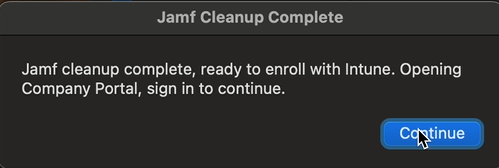
Step 3: A new prompt will appear stating that Jamf cleanup is done and it,s time to enroll in Intune.
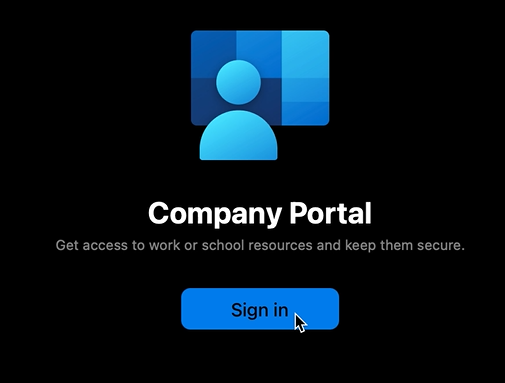
Click “Continue” on the prompt The Company Portal App will open Click Sign In
Sign in with your PowerSchool SSO credentials if prompted.
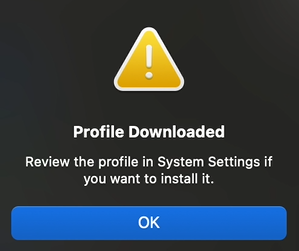
Step 4: You will see an enrollment guide, click Begin You will see a list of items PowerSchool IT can and cannot do/see, click Continue Click Download profile (Profiles expire after a short time, do not pause here!) A prompt appears that the Profile has downloaded, and you need to go install it. click OK
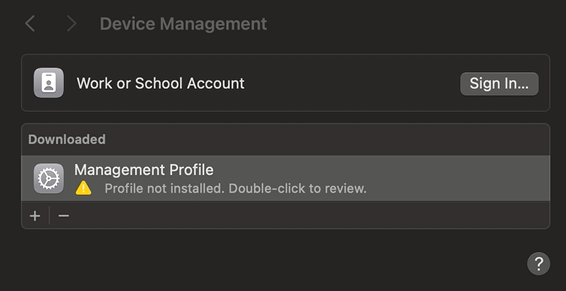
If you closed System Settings, open it back up: System Settings > General > Device Management You will see the Management Profile, double click on it, then click Install
Wait for all the profiles to load. It will take about a minute. If a popups says “Management profile not found” but you saw the profiles load, then click Close. Click Done. Migration is complete, now let’s learn about the Company Portal App

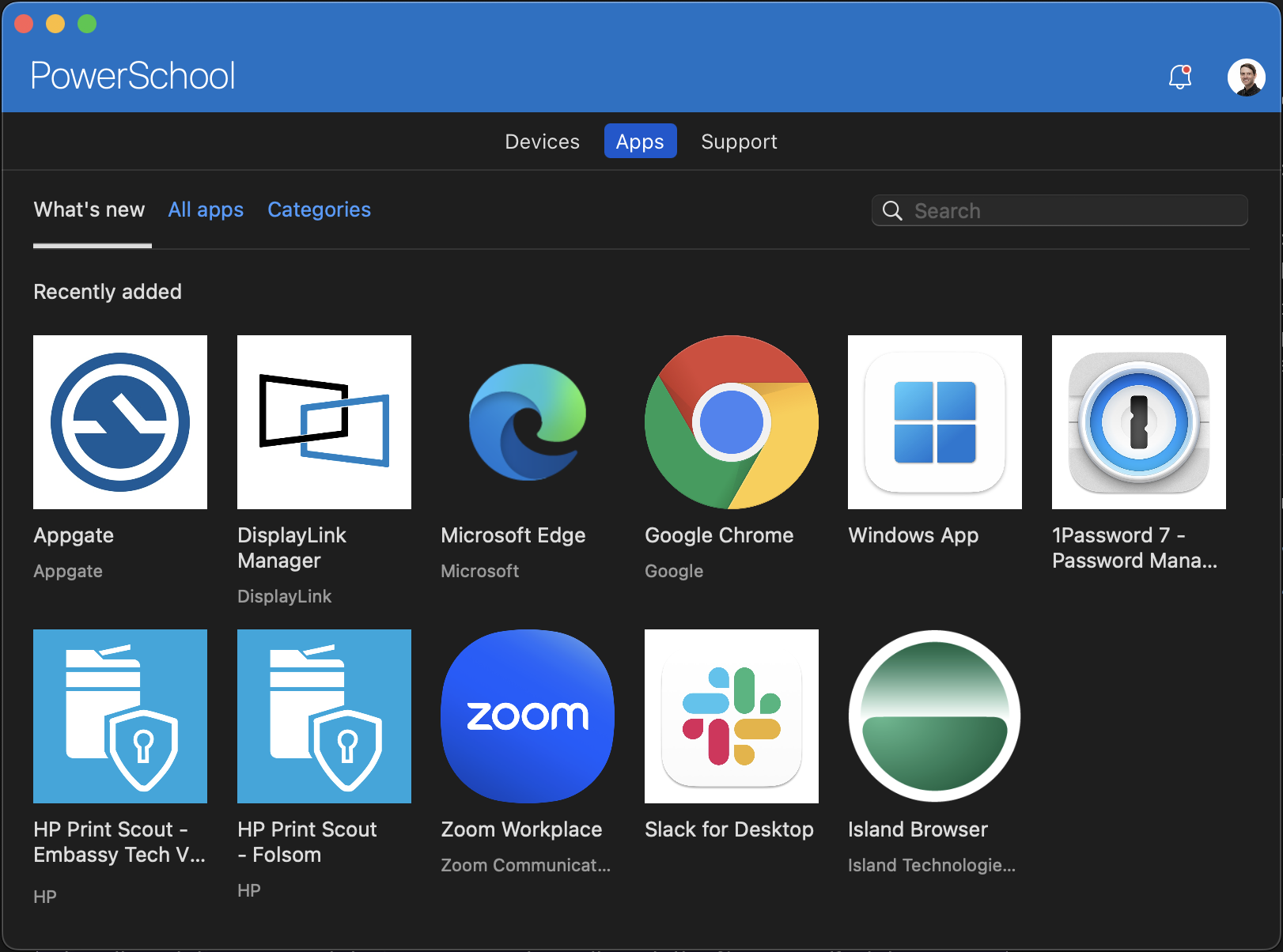
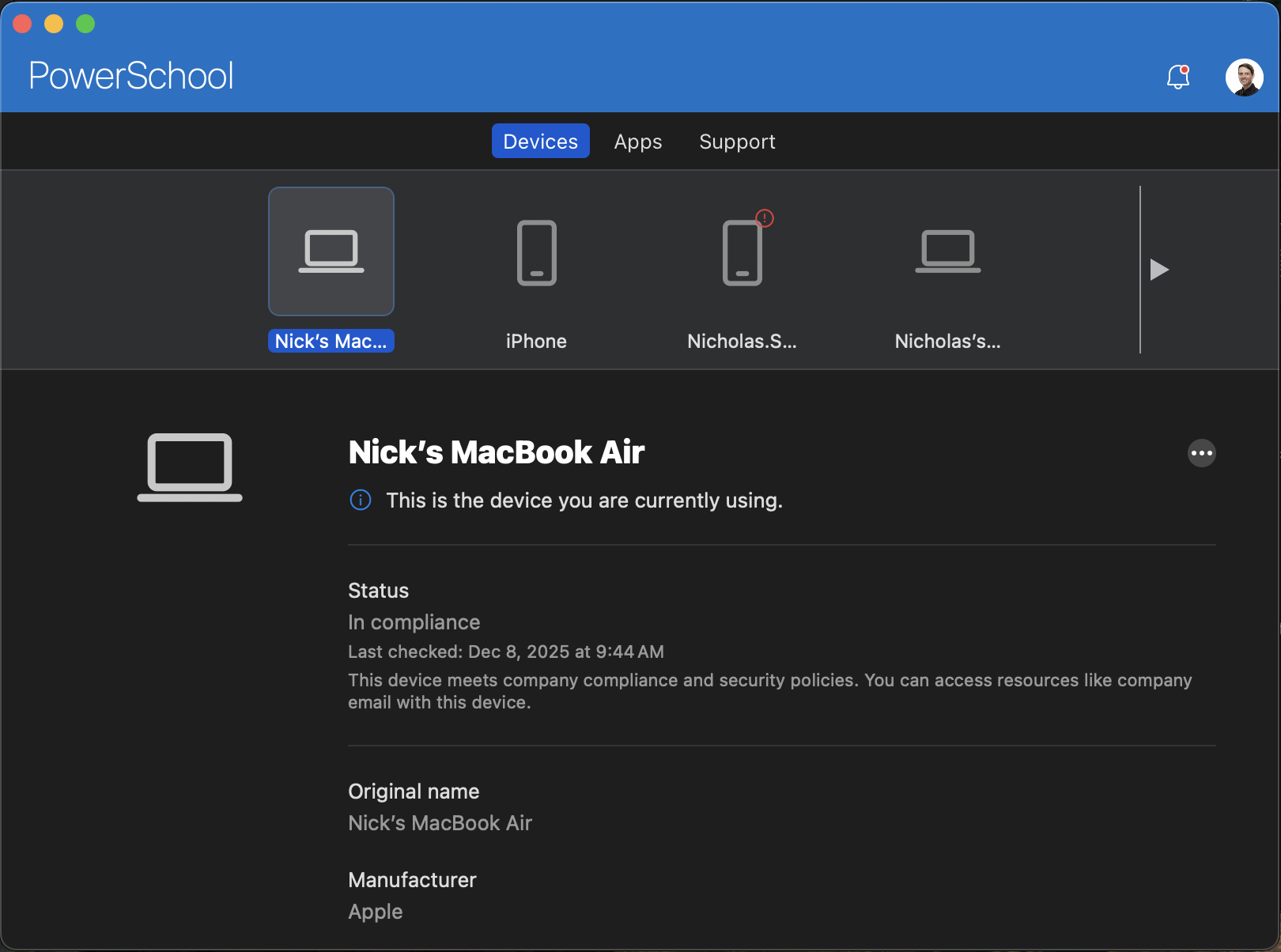
The Company Portal app now serves as your self-service App portal but also displays important compliance and configuration information for all your devices.
First, you will see Devices. The current compliance status is displayed. If there is an issue, you will find info here about how to correct it.
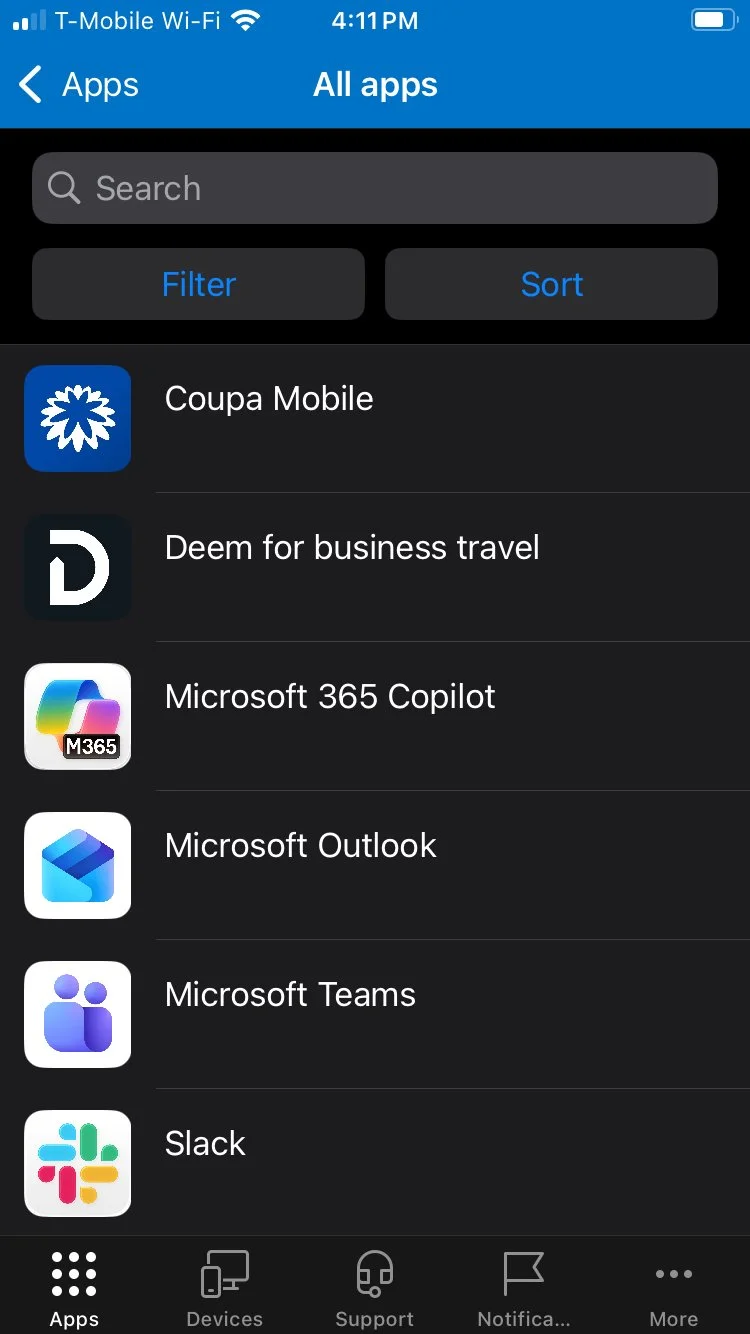
Second, the Apps tab lists all apps made available to you. Some apps are required (auto installed), and do not show here (ie. Microsoft 365 apps, Company Portal app). some apps only show if you have access to them (Island Browser). You may also obtain apps from the Apple App Store as usual.
Jamf to Intune iOS Migration Instructions
This process typically takes 5-10 minutes. You must have the Company Portal app on your device to continue.
Step 1: Confirm JAMF MDM Profile is removed Settings > General > VPN & Device Management
Make sure the old MDM Profile is gone. STOP and contact IT if you see it.
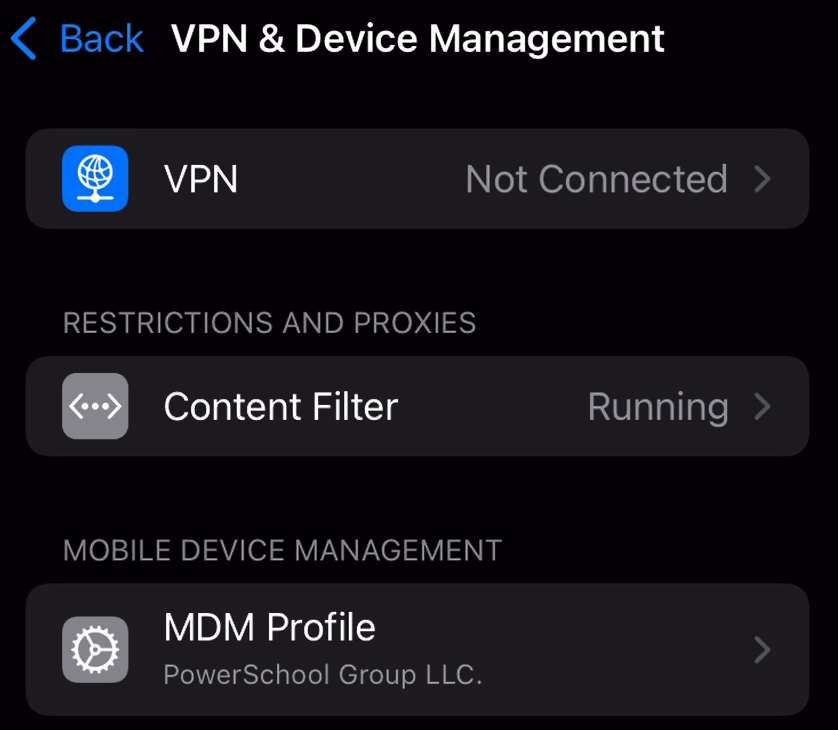
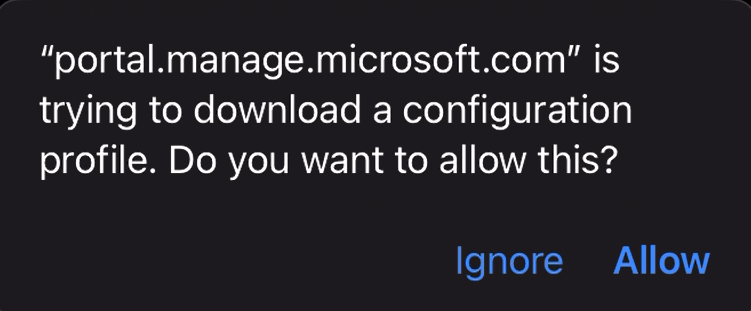
Step 2: Open Company Portal and login if prompted. You will see a prompt to set up access. Tap continue through the pages. You will reach a page that will download the profile, tap Allow
You will need to go back to Settings > General > VPN & Device Management, tap the download profile, and tap Install. Follow all prompts to allow and install the profile.
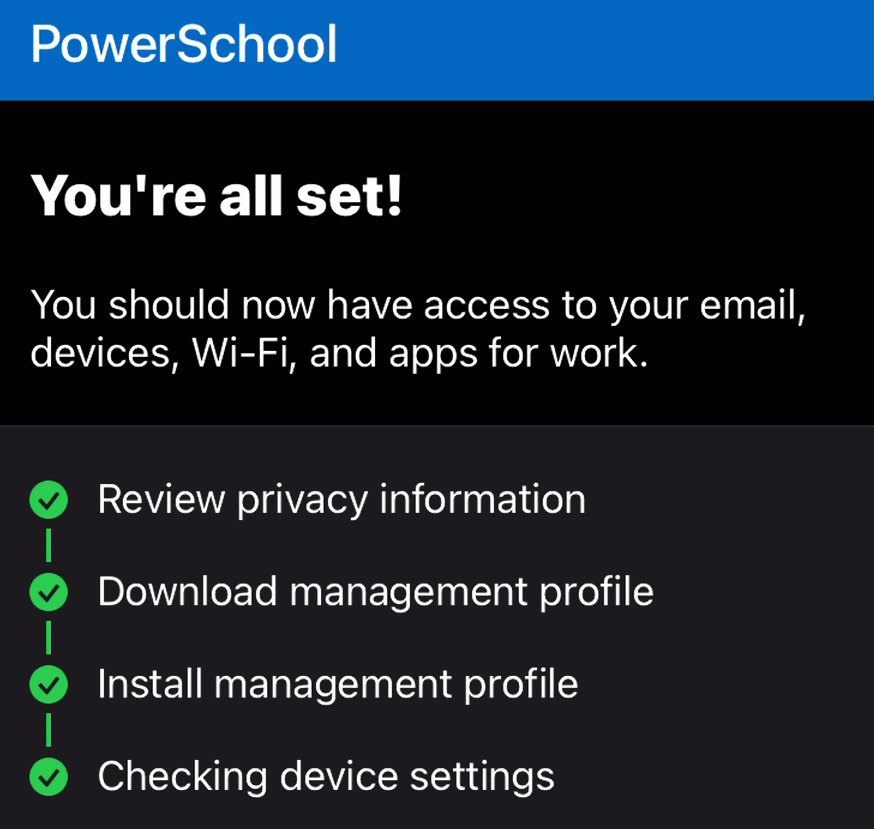
Step 3: Once install is complete, go back to Company Portal and tap Continue Tap Continue once more, and wait while your device is checked You should see a screen saying, “You’re all set!”, tap Done