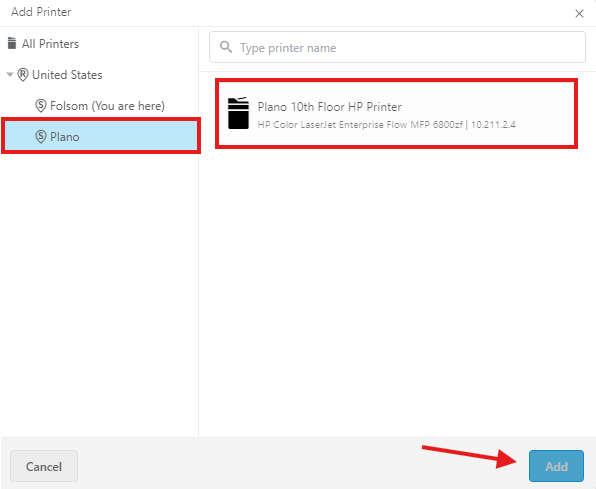

To add the Plano Office printer follow these steps below.
Windows and MacBook Laptops:
1. Locate and find your Company Portal app.
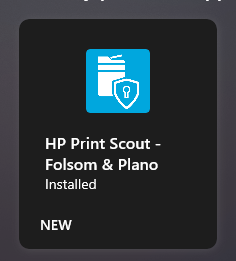
2. Go to Apps and find HP Print Scout Folsom & Plano and install it.
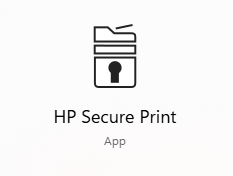
3. Allow the install to finish. Once it’s done installing you’ll be able to find the app listed.
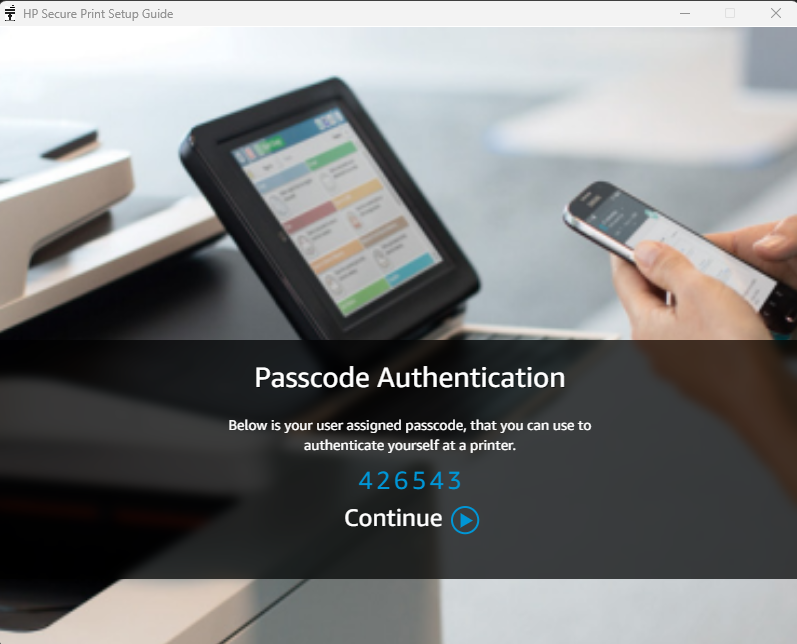
4. Opened the App and you will receive your personal pin. Please make sure you write your personal pin down. It’ll also email you as well. Click on Continue when ready to add the printer.
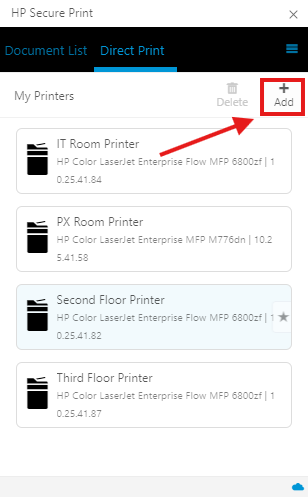
5. To add the printer click the “+” to add the printer. Select the appropriate printer for your location. Then Add. The printer will show up as a drop down option when you are printing your documents.
Disclaimer: If you are using HP Secure print it’ll require you to enter your personal pin. Also, scanning and copying will require your personal pin to be enter to get into the printer. If you are using direct print you do not need to use your pin.